
Step 1: Open the Knowledge Training Area
From your PerfectCSR dashboard, open your AI Agent and go to Knowledge. This is where you add the business information the chatbot will use to answer customer questions.
Step 2: Train With Website URLs
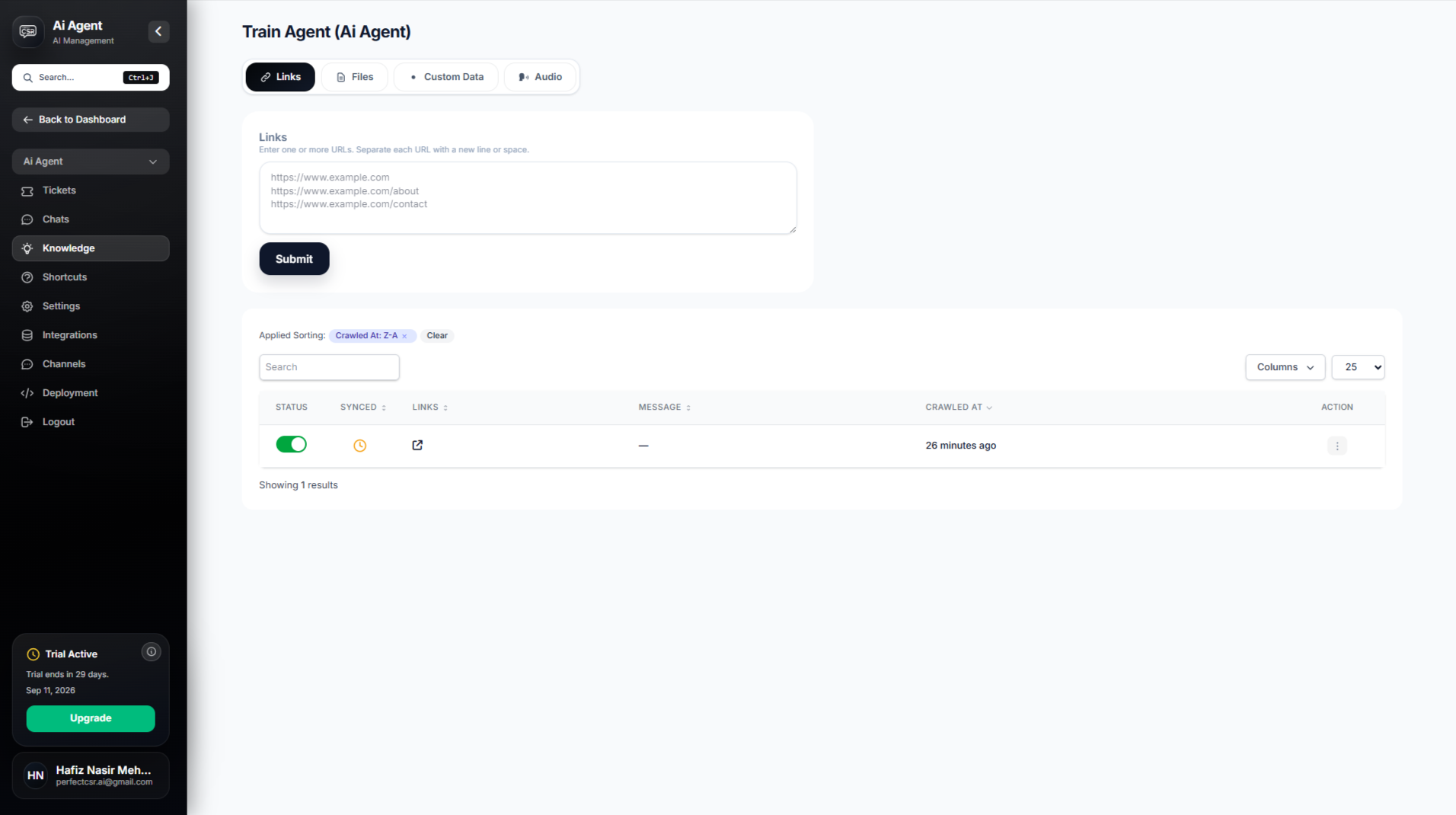
Open the Links section and enter your website URL or individual page URLs.
PerfectCSR can crawl up to 500 website pages in one session. After the crawl, select up to 25 pages that contain the information your chatbot needs most.
Good pages to select include:
- Homepage
- Product or service pages
- Pricing pages
- FAQs
- Shipping or returns information
- Booking or contact information
Step 3: Upload Business Files
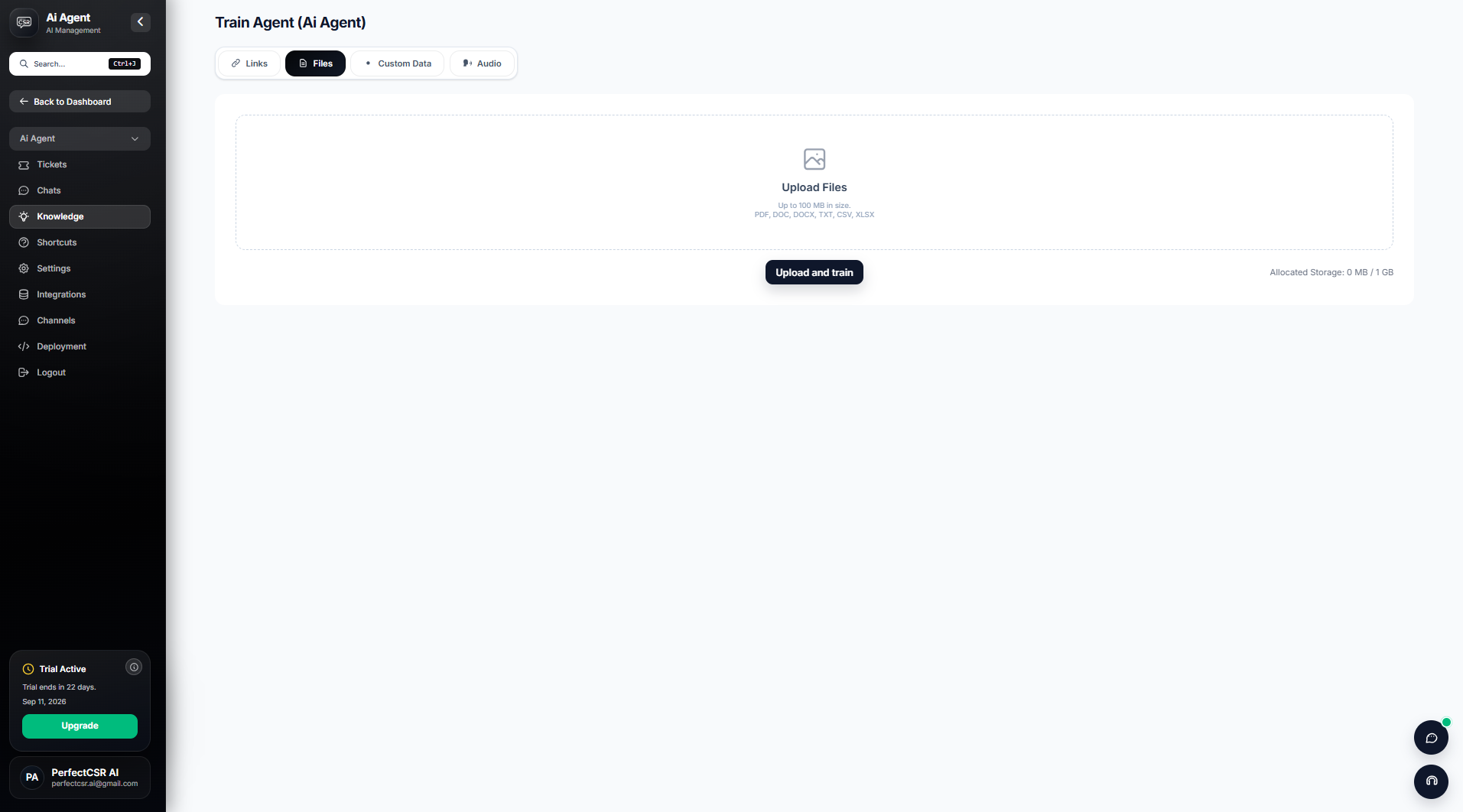
Open the Files section and upload relevant documents that contain information customers may ask about.
You can use documents such as:
- PDFs
- Brochures
- Product information
- Price lists
- Manuals
- Onboarding guides
PerfectCSR's training system is designed to learn from documents alongside website content.
Step 4: Add Custom Data
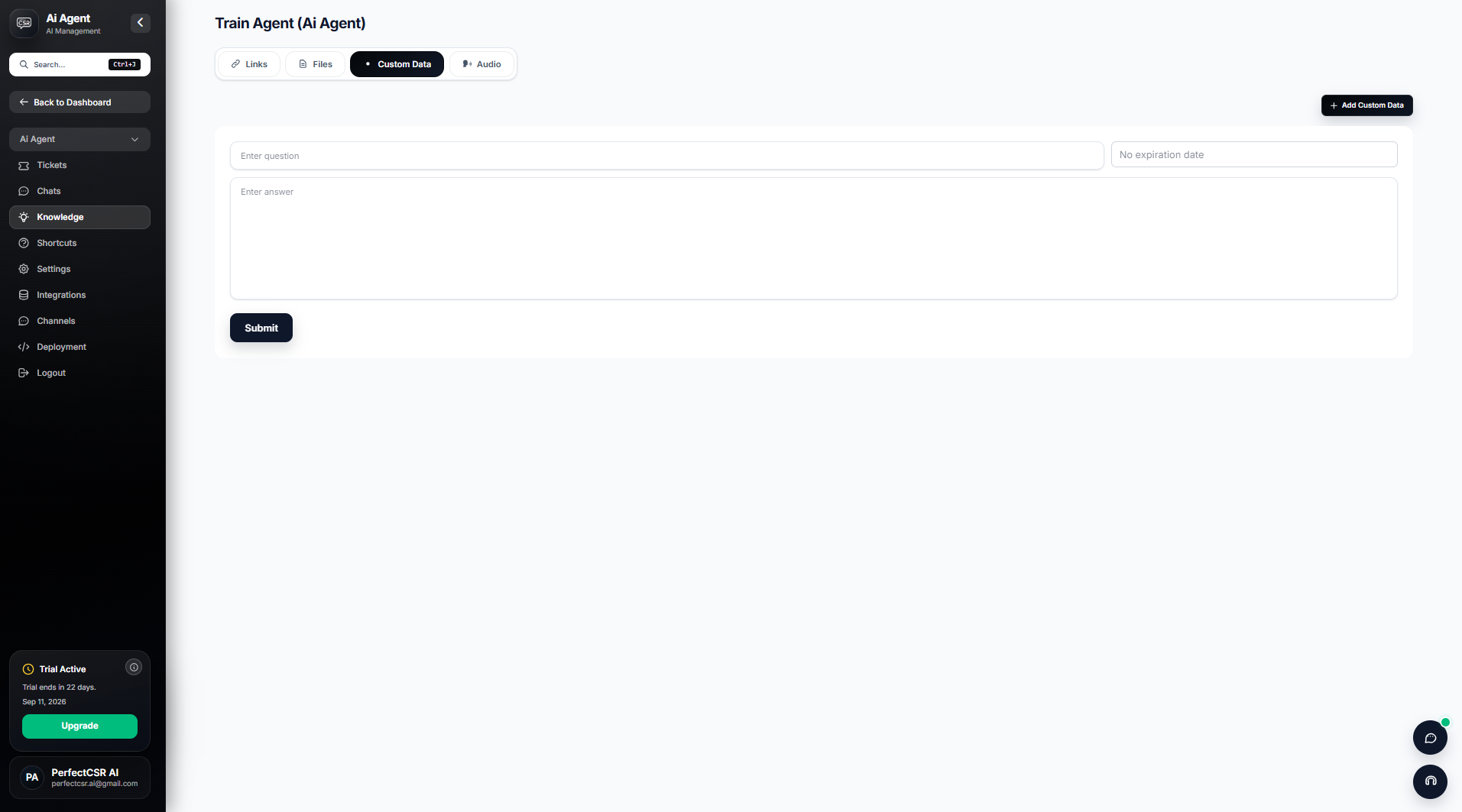
Use Custom Data for important business information that is not already available on your website or inside a document.
Add details such as:
- Special policies
- Service information
- Internal FAQs
- Current offers
- Instructions customers frequently need
Keep this information accurate, clear, and up to date.
Step 5: Add Voice Notes or Audio
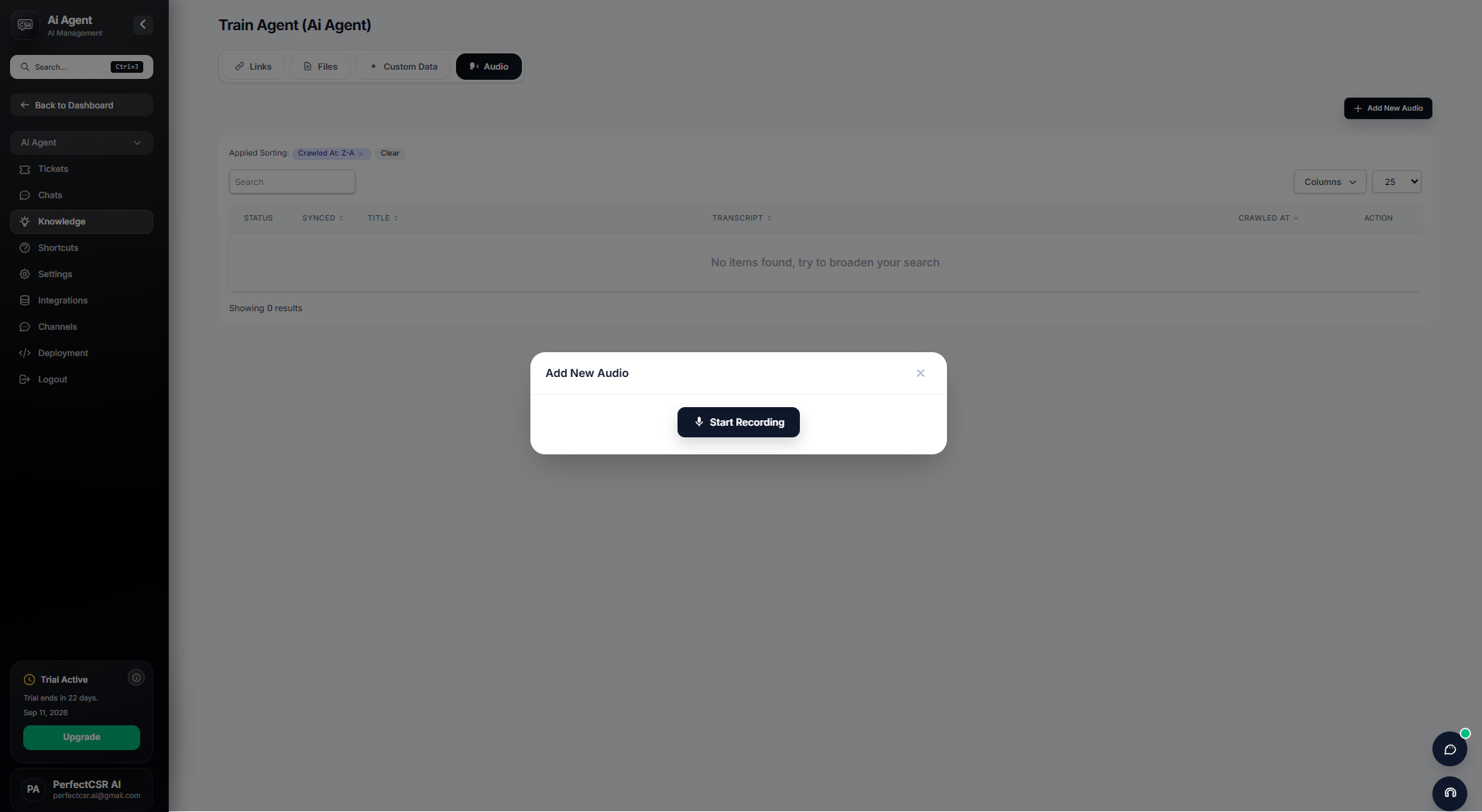
Open the Audio section and add relevant voice notes.
This is useful when important business knowledge is easier to explain by speaking than writing. Voice notes are one of PerfectCSR's supported training sources.
Step 6: Let PerfectCSR Process the Knowledge
After adding your sources, allow PerfectCSR to process and train on the information.
The training flow follows:
Upload → Process → Train
The training interface shows the progress of submitted sources as they are processed and added to the agent's knowledge. The PerfectCSR training system also displays this broader workflow as Upload → Process → Train → Deploy → Improve.
Step 7: Check Your Training Sources
Review the knowledge you added and make sure it contains only information you want the chatbot to use.
Remove outdated content and prioritize:
- Current products and services
- Correct pricing
- Current policies
- Accurate FAQs
- Booking information
- Customer support details
A focused knowledge base gives PerfectCSR better business context than filling it with unnecessary or outdated information.
Step 8: Add Missing Knowledge Over Time
Keep improving the chatbot's knowledge when your business information changes or when new customer questions appear.
Add new website pages, documents, custom information, videos, or voice notes whenever needed so the AI Agent continues working from current business information.